Control Layers
Author
MovTery - 2025/10/29
A control layer is the container for controls; all controls must be placed on a control layer.
Similar to "layers" in drawing software, control layers help you easily achieve the following:
- Manage and organize controls across different layers.
- Implement layered display, hiding, or independent operation of controls.
Control layers do not have a size concept—they always cover the entire screen.
Creating a Control Layer
In the menu on the right, click the "Create New" button to create a new control layer.
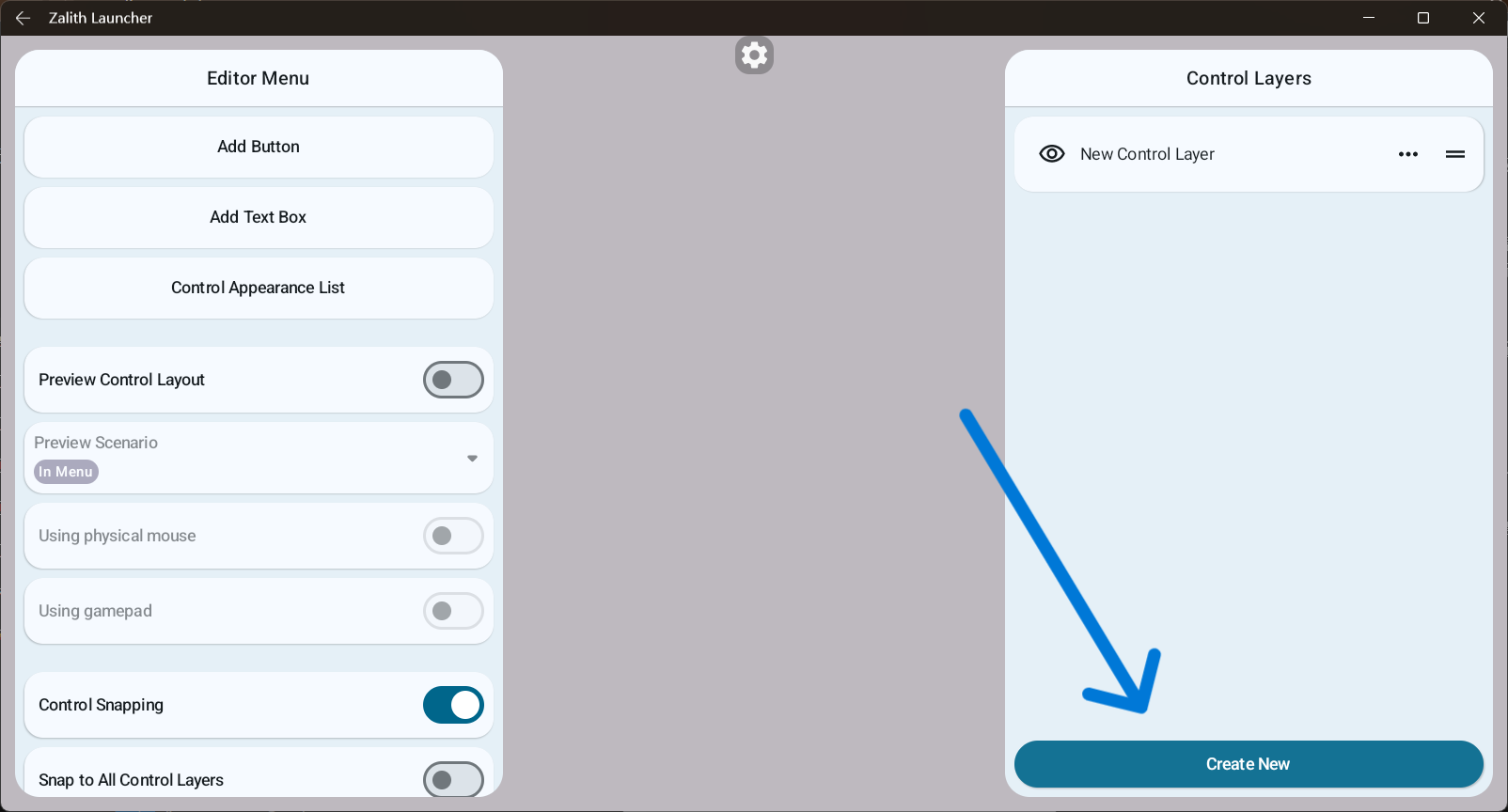
You can click on a control layer to select it, the selected layer will be highlighted with a bold border.
To add controls to a layer, you must first select that control layer.
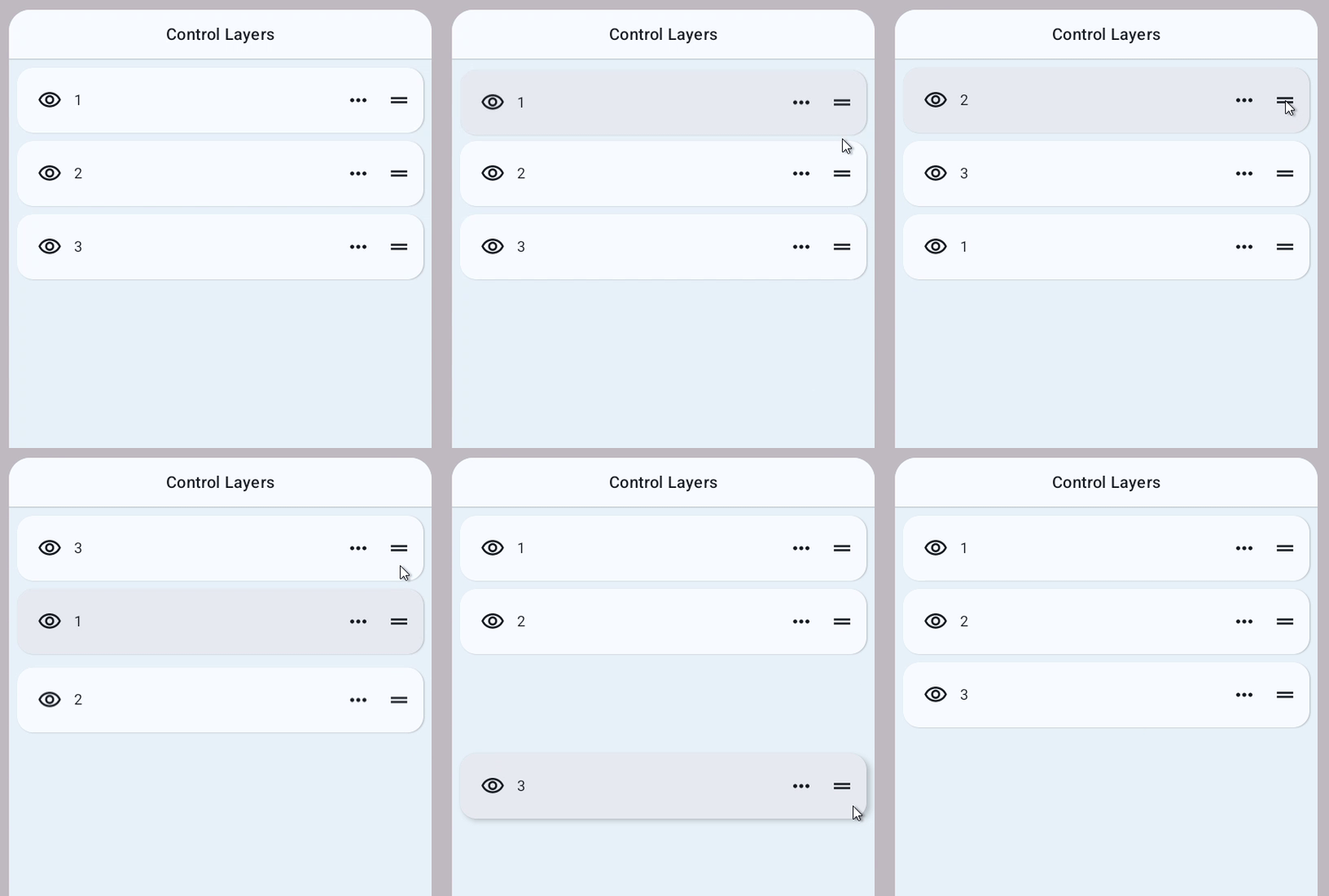
Control layers have a stacking order, they are loaded from bottom to top.
You can drag and reorder layers as needed.
Each control layer has its own set of properties, which can be used to create powerful and flexible behaviors:
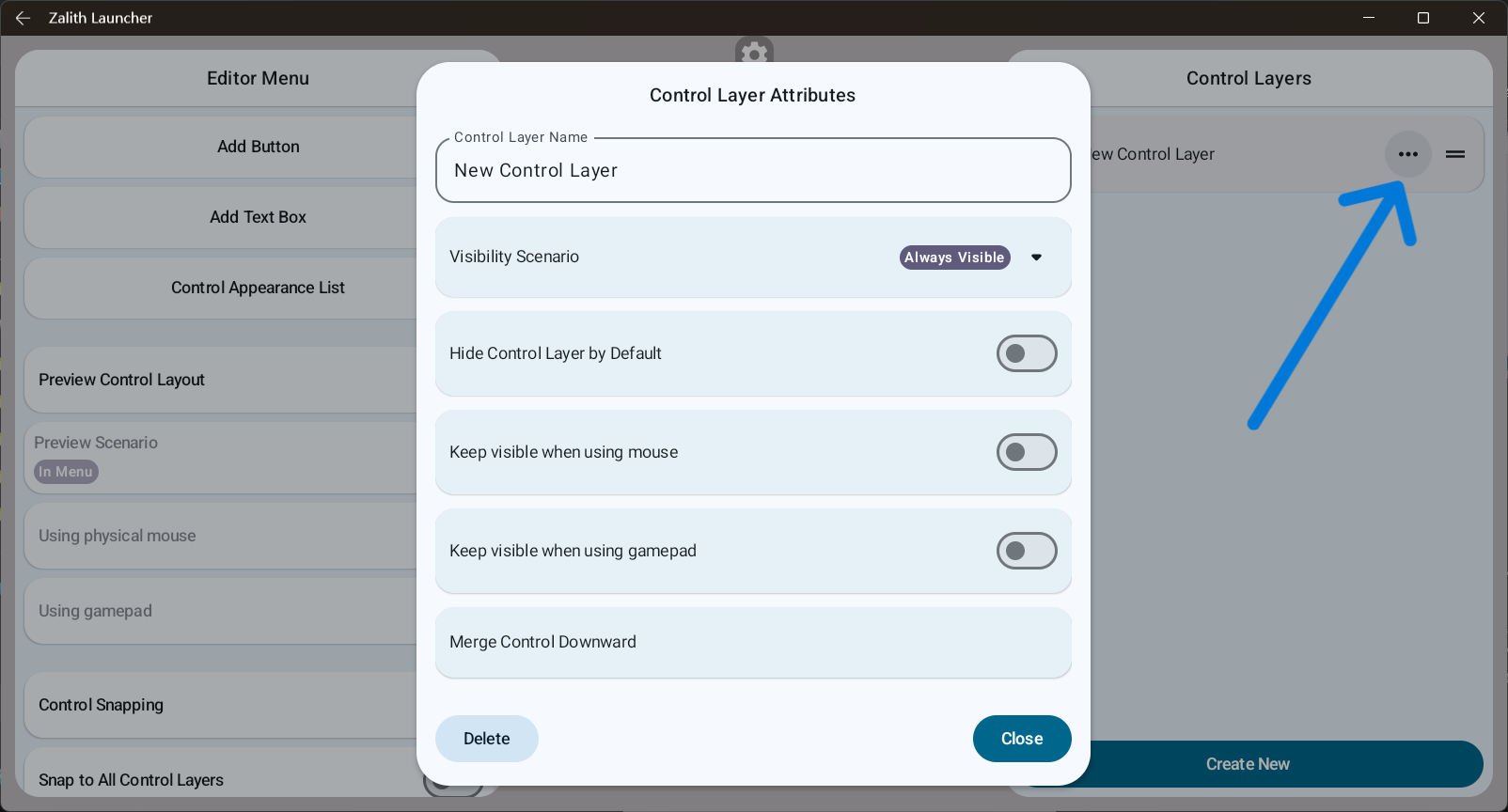
Control Layer Attributes
- Visible Scenario
For more details about game visibility scenes, see: Game States- Visible In-Game:
The control layer is visible when the game is in a non-mouse mode. - Visible Out-Game:
The control layer is visible when the game is in mouse mode (e.g., when opening a GUI).
- Visible In-Game:
- Hide Control Layer by Default
The layer is hidden by default and can only be shown or hidden through button events. - Keep visible when using mouse
When enabled, this control layer remains visible even if you’re using a physical mouse.
For more details about control layout operations, see: Control Layout Operations - Keep visible when using gamepad
When enabled, this control layer remains visible even if you’re using a gamepad.
For more details about control layout operations, see: Control Layout Operations - Merge Control Downward
Merges all controls from this layer into the next control layer below it.