
Changing Skins or Capes
Author
First Edition: TNTyep520 - 2025/11/01
Second Edition Revision: MovTery - 2025/11/04
Preface
You can change your account’s skin and cape directly in the launcher. Currently, this feature supports Microsoft accounts and offline accounts.
If you are using an authentication server account, please visit the corresponding website’s dashboard to modify your skin or cape.
For Microsoft accounts, the launcher uses Mojang Studios’ officially authorized API to handle skin and cape changes, ensuring the process is safe and compliant.
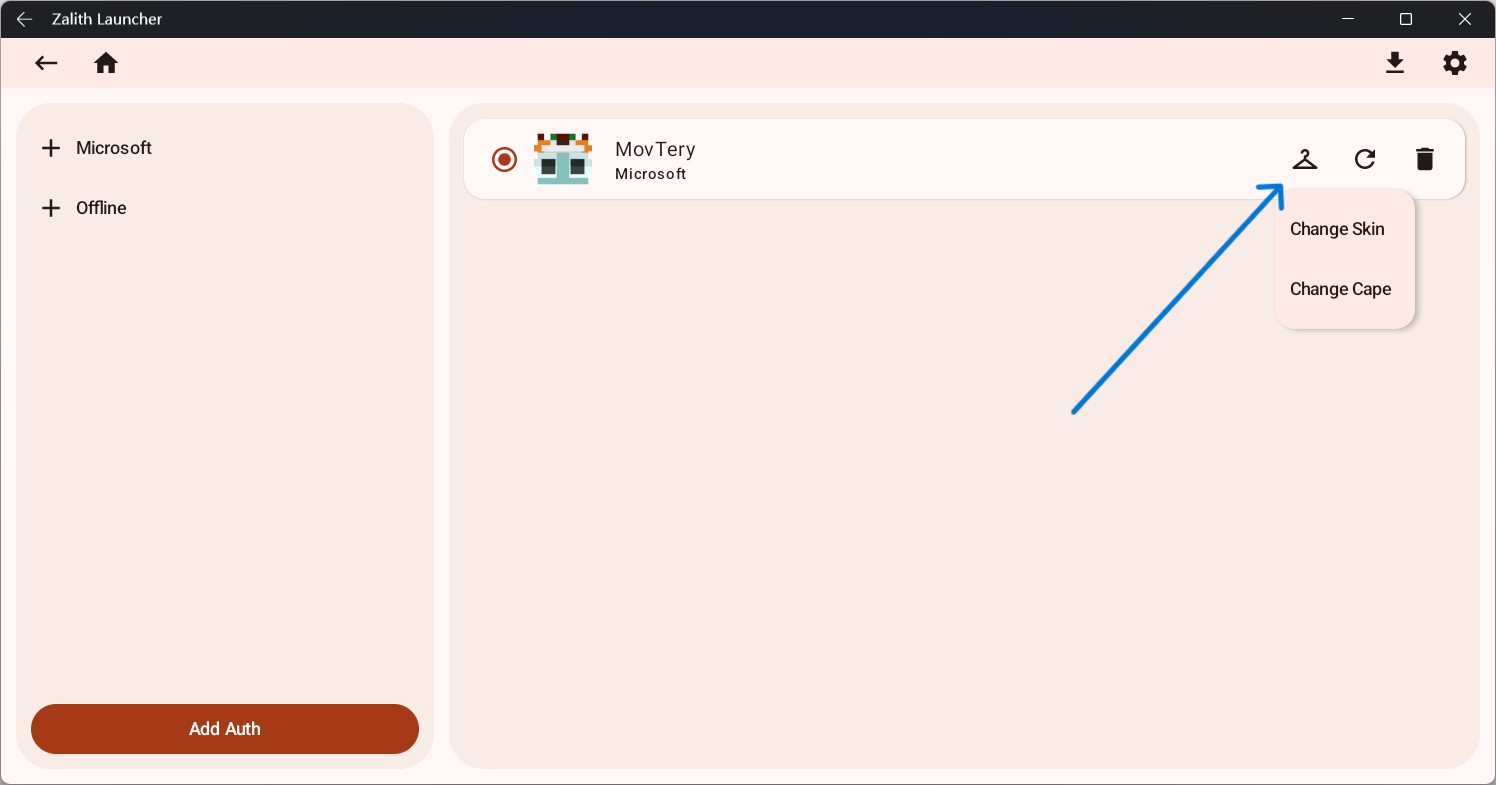
In the account management page of the launcher, click the icon shown below to begin the change.
If your account is a Microsoft account, a submenu for changing skins and capes will open;
if your account is an offline account, a file selector will open directly to let you choose a skin.
This document is written for beginners and aims to avoid complex or advanced steps. Even if this is your first time, you can easily complete the setup.
Changing the Skin
When the file selector opens, you need to choose a skin image file (only PNG format is supported, with a resolution of 64x64 pixels or 64x32 pixels).
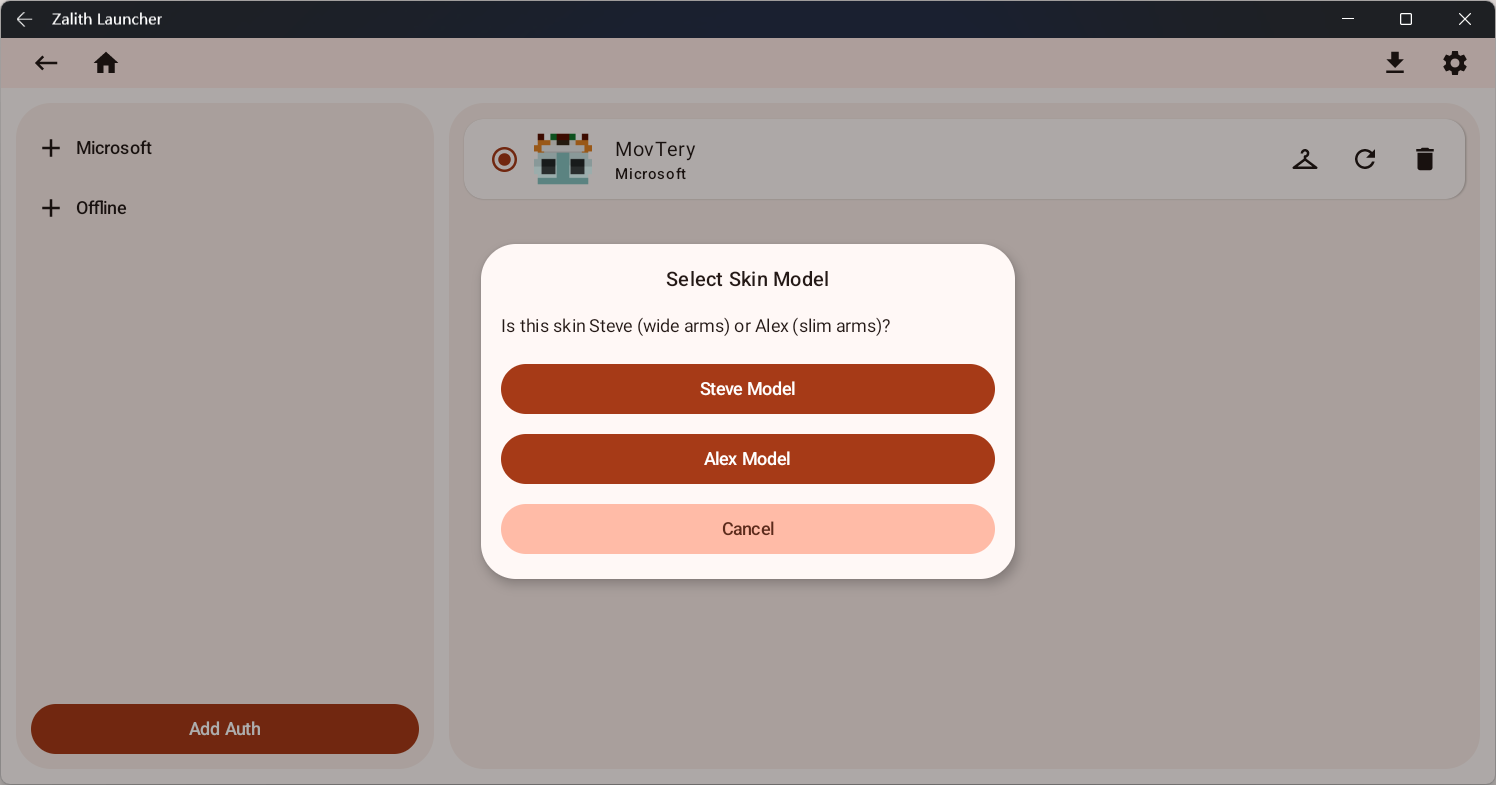
Then, the launcher will ask you to choose a skin model. Please select the model that matches your chosen skin:
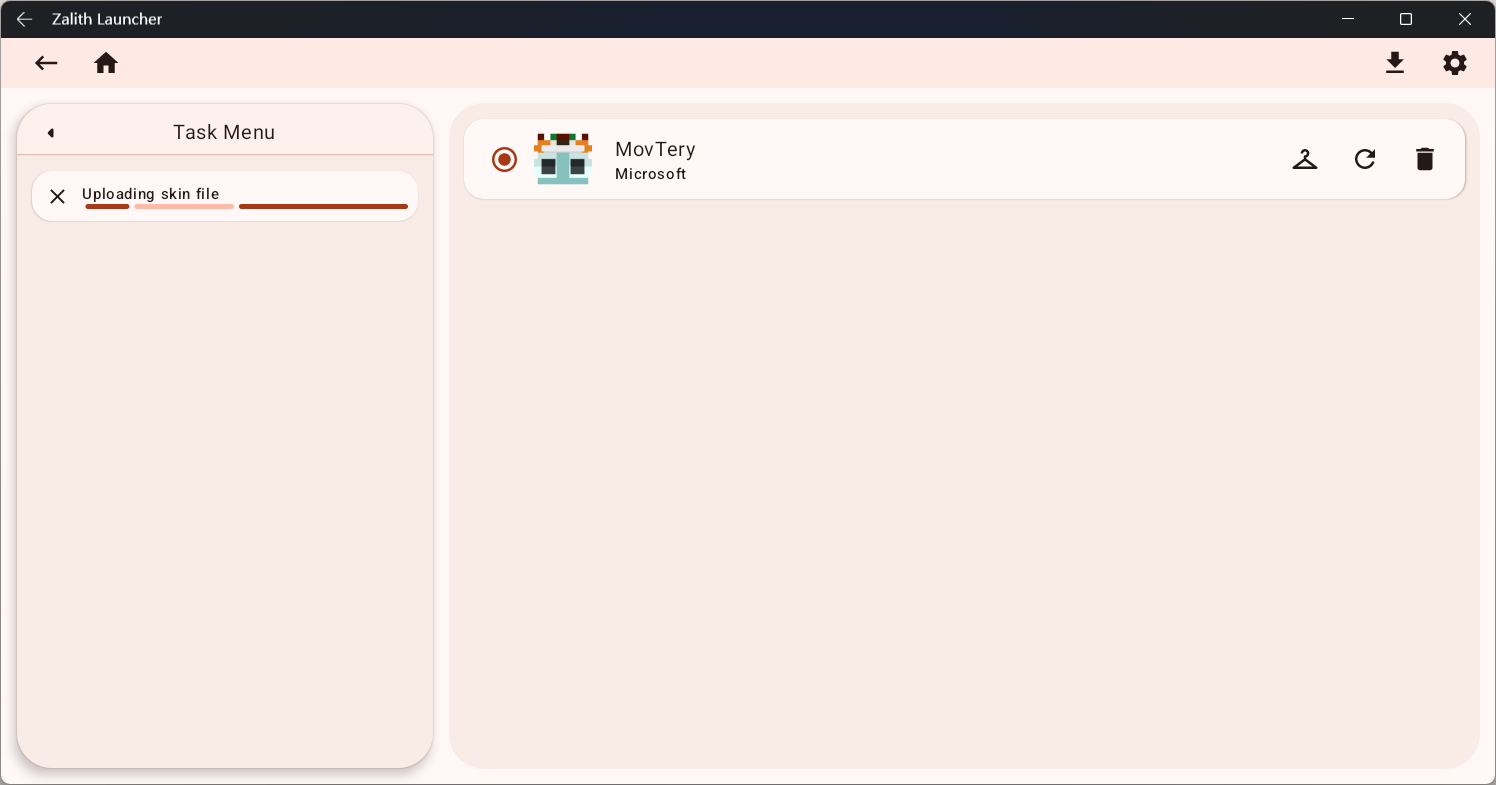
After you finish selecting, the launcher will immediately update the skin data.
For Microsoft accounts, the launcher will send a POST request to the Mojang API to update the player’s skin data.
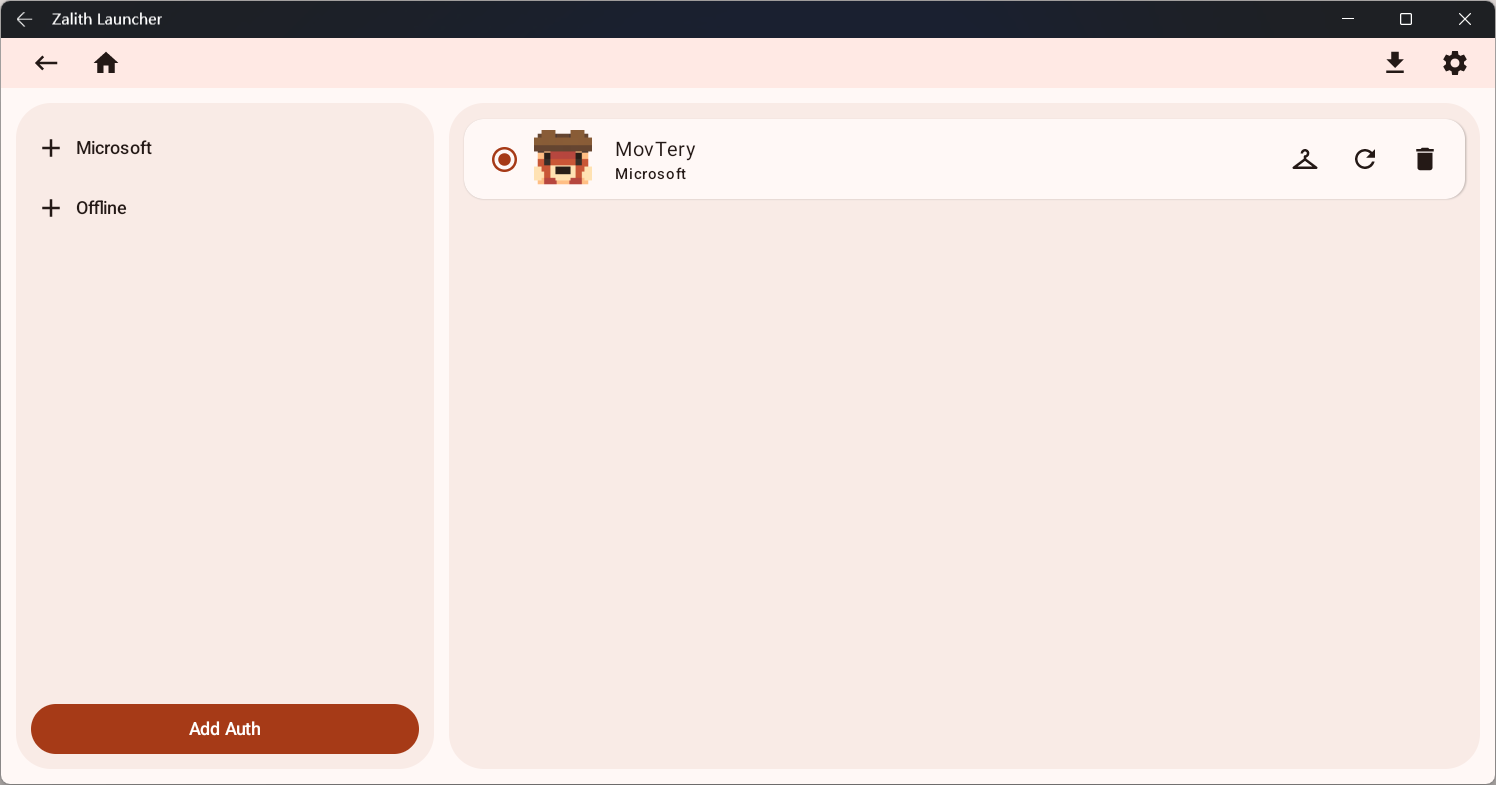
After success, the launcher will automatically refresh the player avatar to show the latest skin appearance.
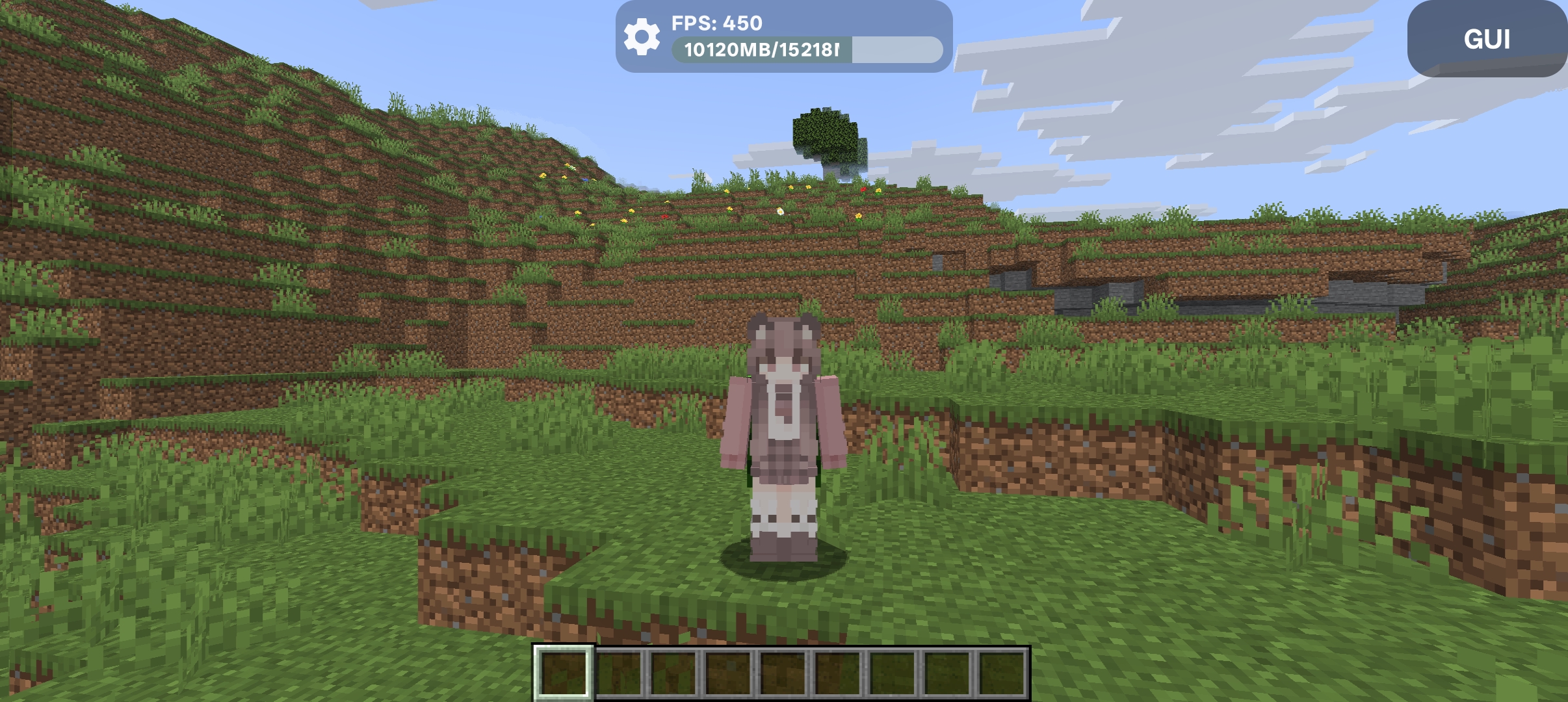
Then you can see your newly changed skin in the game.
Changing the Cape
Currently, only Microsoft accounts are allowed to change capes.
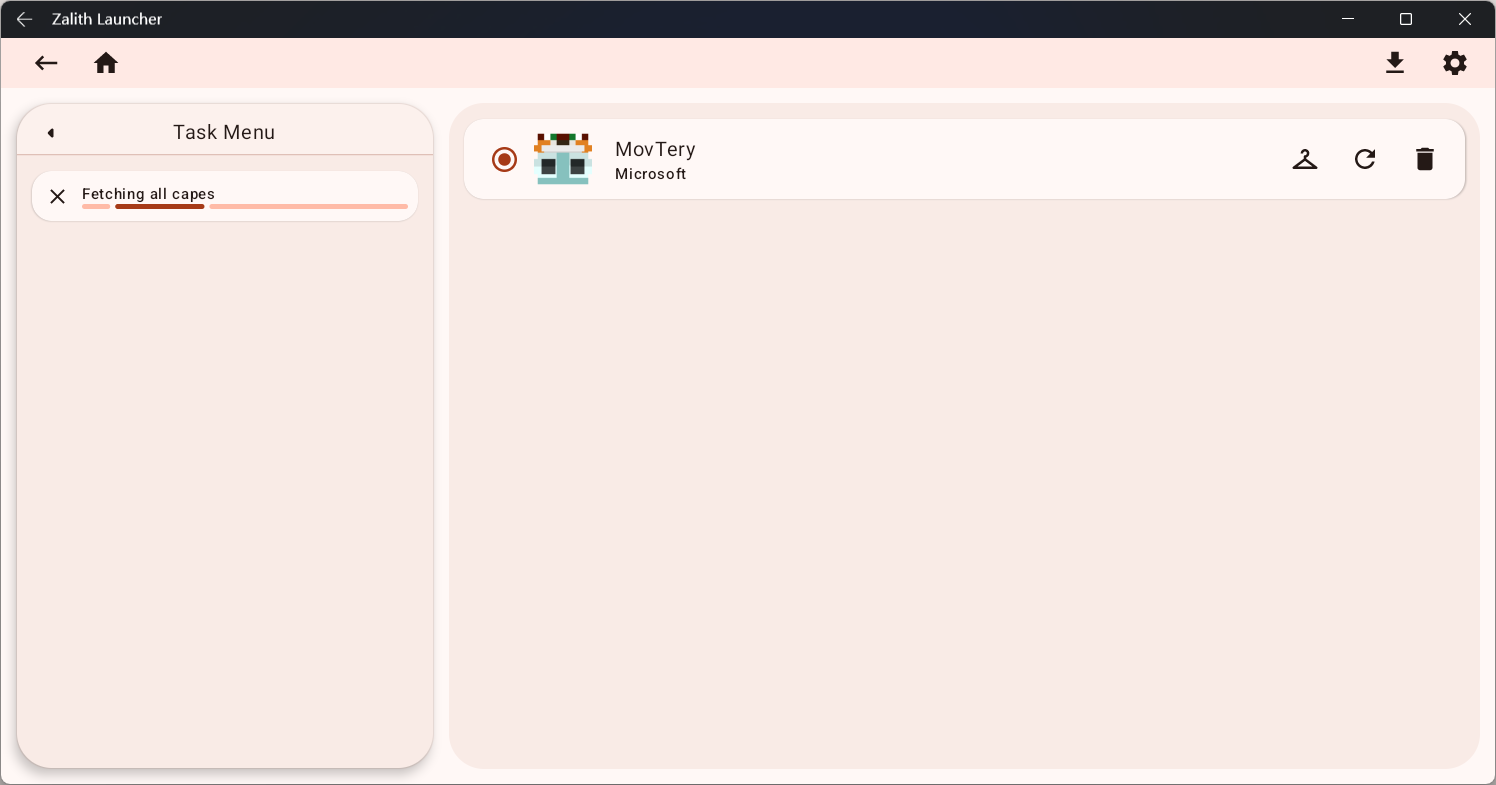
When changing a cape, the launcher will retrieve the player’s owned cape data through the Mojang API:
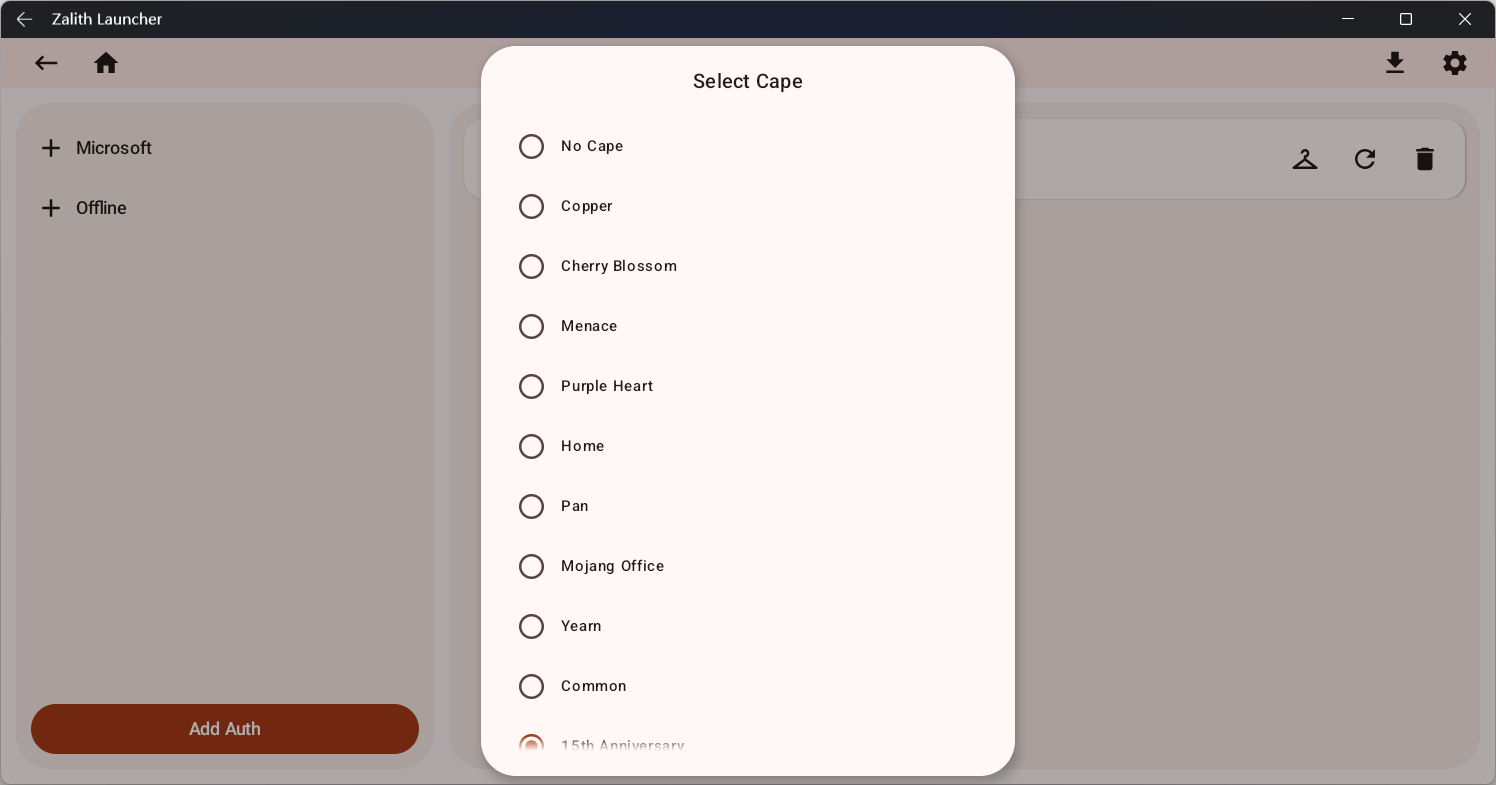
After successful retrieval, the launcher will display all your capes in a dialog and automatically localize them.
You can select the cape you want to change here:
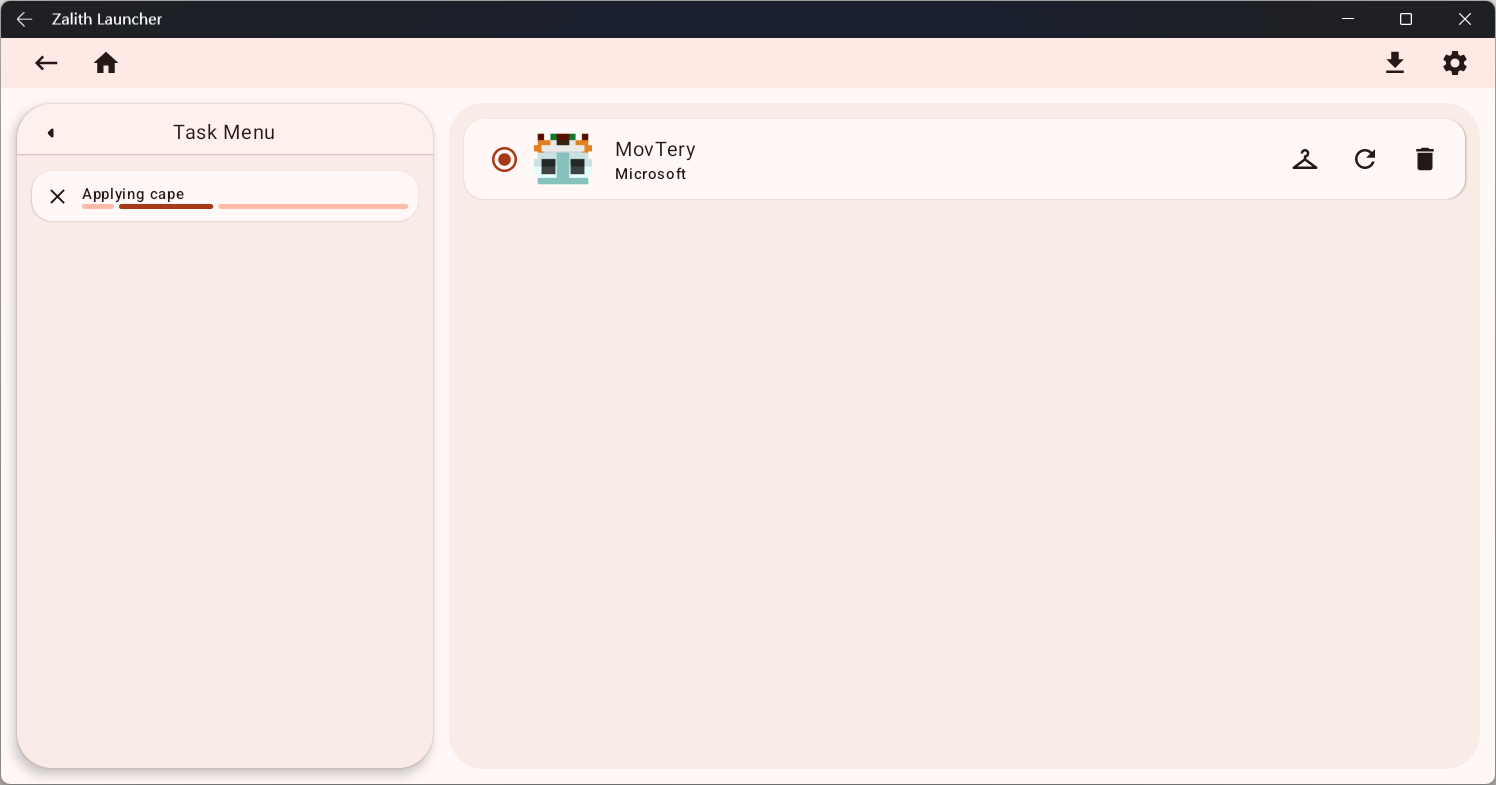
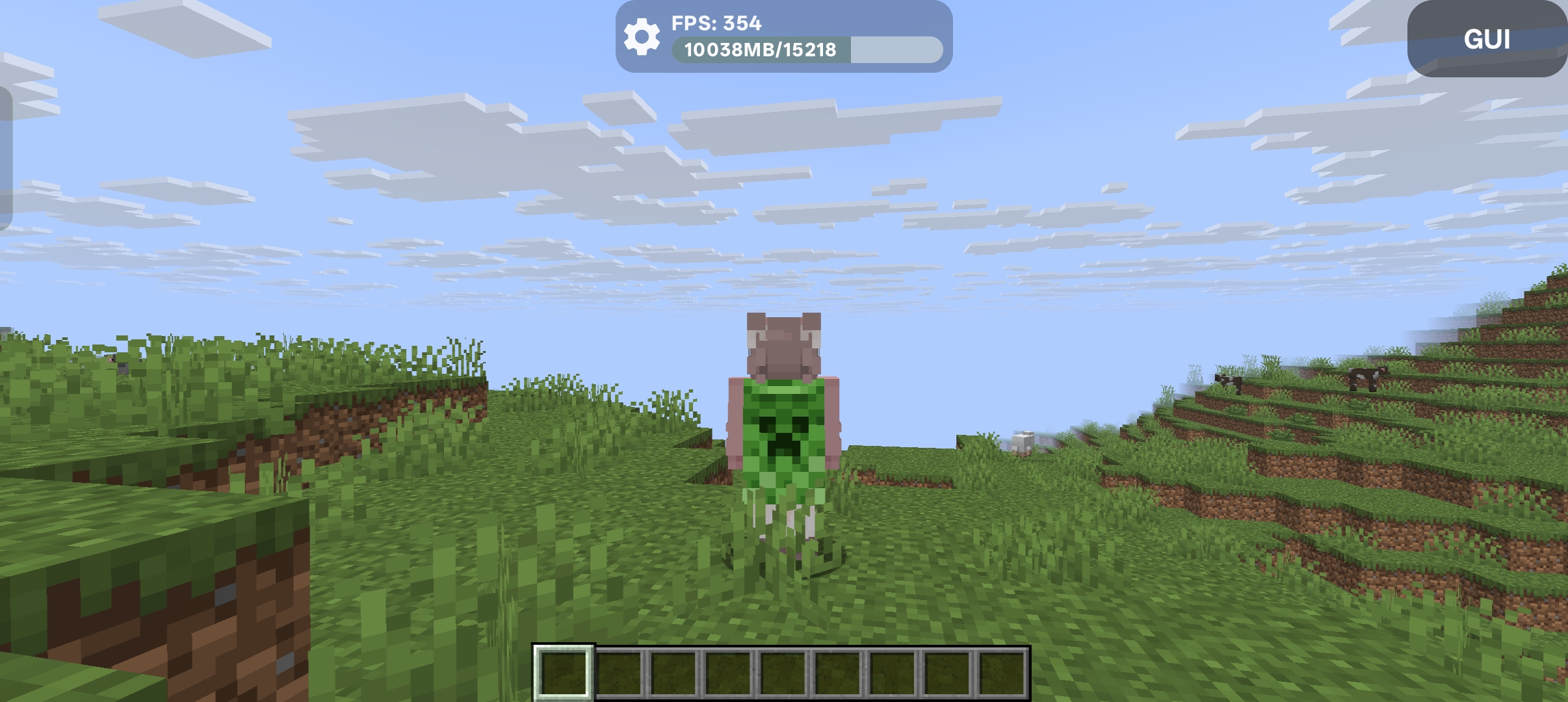
Then you can see your newly changed cape in the game.
Advanced Content
This section provides detailed technical explanations and is not intended for beginners.
Microsoft Accounts
Implementation details for changing skins:
- After obtaining the skin file you selected, the launcher validates the image (ensuring it is PNG format and resolution is 64x64 or 64x32, as allowed by Mojang).
- If the image is valid, you are prompted to select a model type.
- The skin image file is read as a byte array.
- The skin data is uploaded through the Mojang API. Relevant documentation: Minecraft WIKI
- If the upload fails due to account authentication issues, the launcher will re-login and retry the upload.
Implementation details for changing capes:
- First, the launcher retrieves your player data via the Mojang API. Relevant documentation: Minecraft WIKI
- The player configuration contains all cape data owned by your account.
- The launcher displays the cape data in a list and attempts localization based on the
aliasof each cape. Related source code:- _Capes.kt: GitHub
- Based on your selection, the launcher uses the Mojang API to reset or change your cape. Relevant documentation: Minecraft WIKI
- If the change fails due to account authentication issues, the launcher will re-login and retry the cape change.
Offline Accounts
Why can offline accounts use custom skins even in a local environment without internet access?
In early versions of the launcher, the offline skin feature was implemented by generating a resource pack. However, this approach had many limitations — it didn’t work in some game versions and became completely invalid after version 1.19.3.
In the current implementation, the launcher supports custom skins through an offline Yggdrasil API server.
The principle is the same as that used by HMCL: it uses the Authlib-Injector feature to specify a custom authentication server URL (the API address) and connects to a locally hosted authentication server provided by the launcher to deliver skin data for the player.
The launcher's offline Yggdrasil API server runs on the CIO Engine.
You can refer to the implementation source code below:
- OfflineYggdrasilServer: GitHub
With this method, you can still see your custom skin normally in a completely offline vanilla Minecraft environment.